Someone sent you the address as a voice message. Or the quote, the name of the medication, the new time. Three weeks later you need it — and all you remember is that it was said, not where.
You tap the magnifying glass, type "quote" and nothing comes up. That is not your mistake or an app bug: it is how the search works.
Why WhatsApp search cannot find voice messages
Search compares what you type against the text of your messages. A voice message has no text — it has sound. To the search engine, that four-minute message is a file with no words inside.
Hence the blunt rule: whatever was said inside a voice message stays out of search. On the phone, on WhatsApp Web and on the desktop app.
What you can do without installing anything
Three native routes. None of them finds the word, but all of them shrink the pile.
- Only the voice messages in that chat — open the chat, tap the contact's name, choose Search and use the type filter to keep only Audio.
- Jump to a date — on the same search screen, the calendar icon takes the chat to the day you pick. Remembering "it was the week of the holiday" already cuts out months.
- The chat's media list — it keeps that chat's files in date order, useful when you remember the period but not the day.
The ceiling shows up fast: at the end of the three you have a shorter list of voice messages — and you will play them one by one until you find it. In a busy chat, "shorter" is still dozens.
What actually solves it: give the audio a text
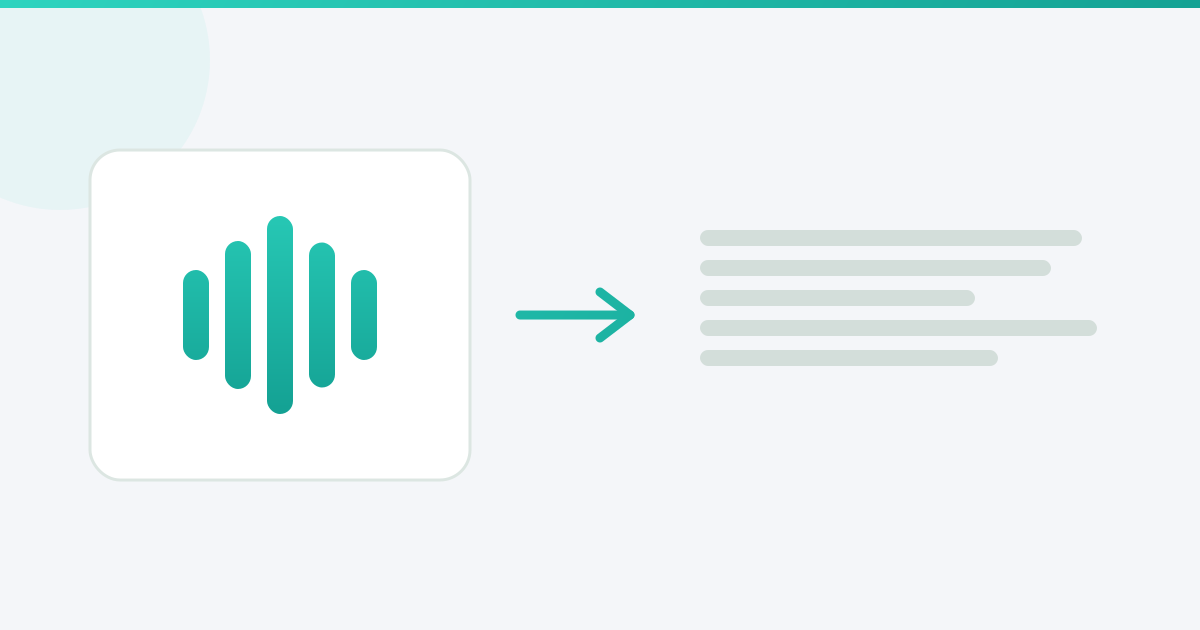
If the problem is the missing text, the answer is to create the text. A transcribed voice message becomes searchable content like any written message — and "where did she mention the quote?" gets an answer in a second.
How this works in ZapVox
ZapVox is an extension for WhatsApp Web on your computer. Each voice message turns into text with one click — and each of those transcripts joins a library you can search later.
- In WhatsApp Web, press Ctrl+K (or Cmd+K on a Mac). A search bar opens over the conversation.
- Type the word. Accents do not get in the way: orcamento finds orçamento.
- Results come grouped by conversation, with the snippet around the word. Click one and ZapVox opens that chat.
The same search lives in the ZapVox panel next to the conversation, for anyone who prefers the mouse. Either way it works on what is already stored on your computer.
- ✅ Searches what was said, not the file name
- ✅ Also looks inside the notes you wrote on your chats
- ✅ Groups by conversation — it answers "who did I discuss this with"
- ℹ️ On the free plan search covers the last 7 days; on paid plans, 90 days
The honest part: it finds what was transcribed
Search has no power over audio nobody transcribed. Install today, search for a conversation from March and you will come up empty — that voice message never became text.
That is why automatic transcription is worth turning on: incoming audio arrives already transcribed and the library builds itself while you work. After two weeks of ordinary use, search starts answering almost everything you throw at it.
In two lines
- Old voice message, no extension: filter by audio, jump to the date and listen — that is what exists.
- From now on: transcribe what arrives, and searching by word becomes possible.
ZapVox has a free plan and runs on Chrome, Edge and Brave. See how to install it.